5 Methods to Transfer Photos from OnePlus 7 to Computer
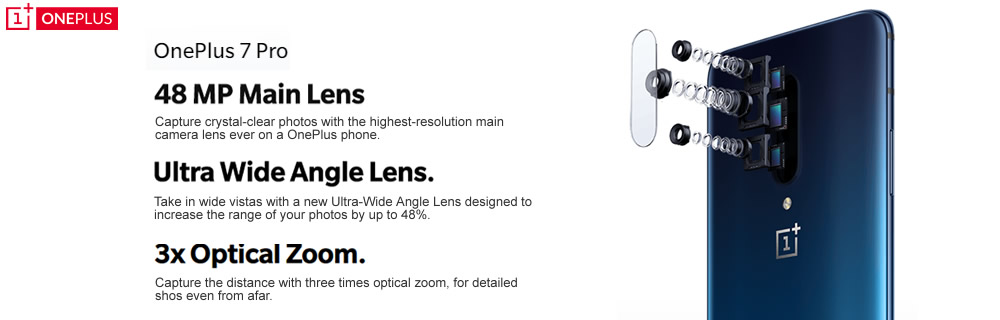
Capture life in brand new ways with a 48 MP main camera, ultra wide angle lens and 3x optical zoom. Combined with smart scene recognition and new Nightscape 2.0 technology, the OnePlus 7 Pro is your personal photo studio.
As OnePlus 7 just upgrade its camera in this new generation, you can catch up more wonderful moment by this new OnePlus 7. You don't want lose these precious moment, do you? Backing up these photos could be an easy thing with the help of Syncios programs - Syncios Manager and Syncios Data Transfer. In the following passages, 5 solutions are ready for you to solve this problem. Start it now!

Method 1: Backup all OnePlus 7 Camera Roll & Photo Library by using Syncios Data Transfer
This is a super convenient program designed for whom prefer to let everything become much more easier. Through Syncios Data Transfer, you can transfer every photos and pictures from your OnePlus 7 to computer. You don't need to find out the location of the certain photos, Syncios will find out all pictures and make a backup on your computer.
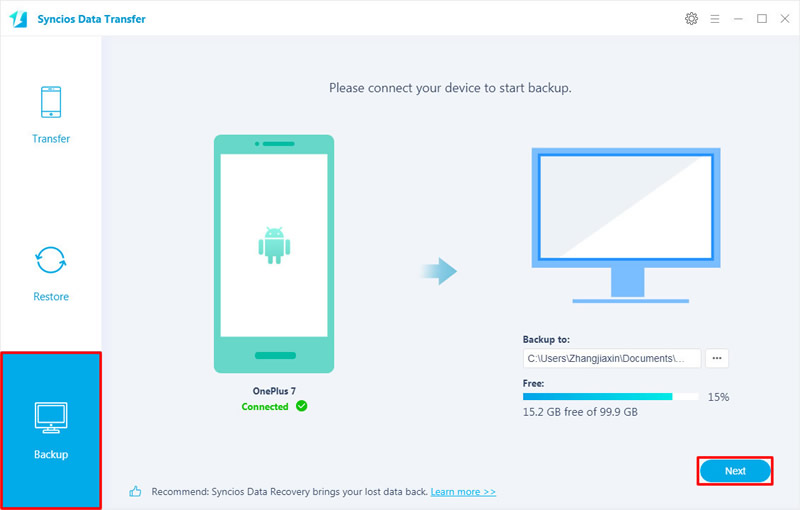
Step 1: Launch Syncios Data Transfer >> Connect OnePlus 7 to computer >> Choose 'Backup' function
To begin with, please download and install Syncios Data Transfer on your computer first. Then launch it and connect your OnePlus 7 to computer via USB cable or by using Wi-Fi connection (OnePlus 7 and your computer must access to the same network, then scan the QR code to connect). Choose 'Backup' option on the left side. Once you connect successfully, click 'Next' for the next step.
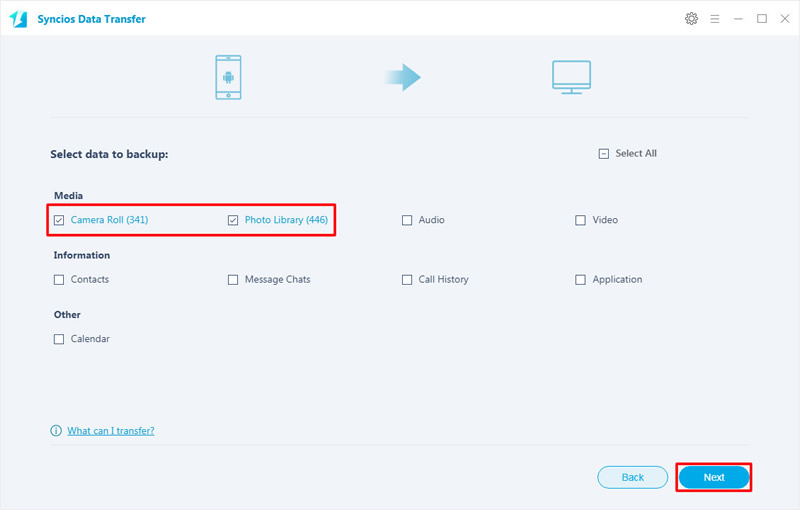
Step 2: Select 'Camera Roll' & 'Photo Library' options >> Click 'Next' to launch
Choose 'Camera Roll' and 'Photo Library' options and wait for Syncios to synchronize your data. Then click 'Next' button to launch the transferring process.
Tips: If you encounter any detection problem during the process, please check our Android tutorial for help.
You can also learn from a video tutorial:
Method 2: Transfer certain OnePlus 7 Photos and Pictures by using Syncios Manager
To backup certain precious photos, we recommend you to use Syncios Manager which support to choose desired photos to backup. Either whole photo folder or specific photos, you can all select of your own.
Start to Begin
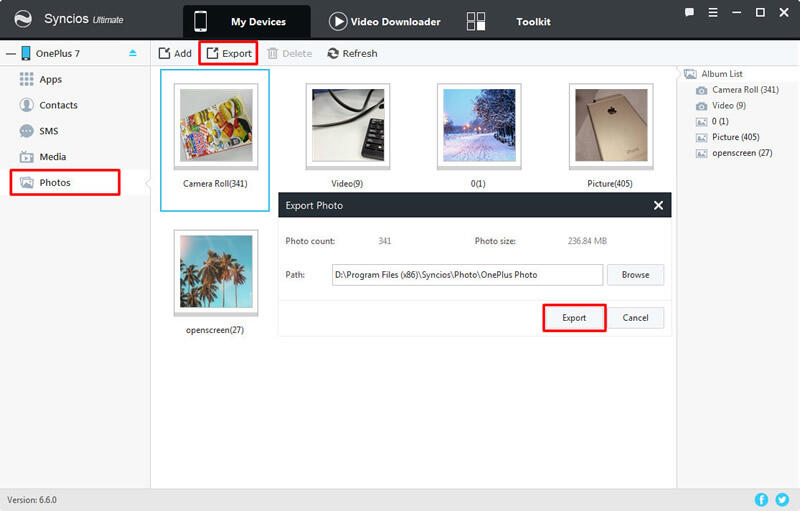
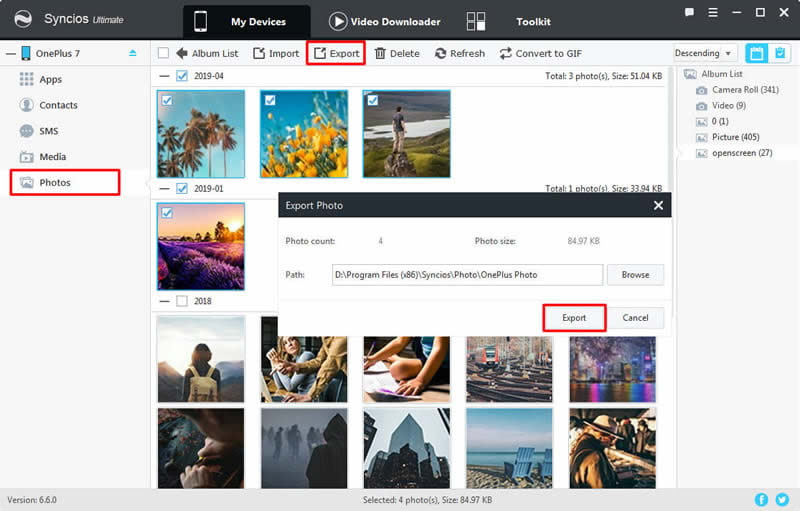
This time, please download and install Syncios OnePlus Manager on your computer first. Then launch it and connect your OnePlus 7 to computer through USB cable. Choose 'Photos' option once Syncios finish the data synchronization. And all OnePlus 7's photo folder will list on the interface.
Export Photo Folder
Now you just need to choose the certain photo folder you want and click the 'Export' button on the menu bar. Choose your saving route and click 'Export' button to launch.
Export Photo File
In order to select specific photo file, please double click the certain photo folder to enter. Then you can choose multiple photos to transfer. Do the same operations as we mentioned before.

Tips: If you also want to 1-Click backup all pictures from your OnePlus 7 to computer, we highly recommend you upgrade to the ultimate version. Syncios '1-Click Backup' function only open for ultimate user. You can upgrade to ultimate version or know more difference between free version and ultimate version through Syncios' Version Compare.
Method 3: Use Syncios Manager's 1-Click Backup to Backup all OnePlus 7 Photos
Syncios Ultimate can also achieve the '1-Click Backup' function. Just simply select the item you want and click 'Start Backup' to launch.
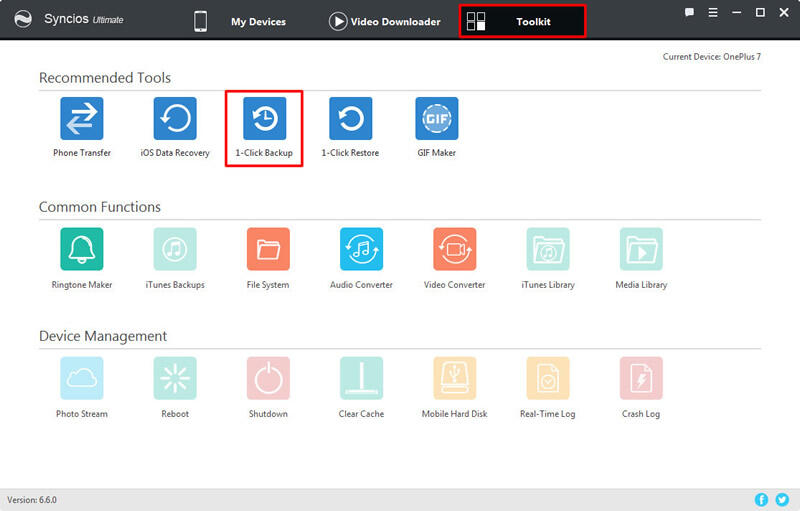
Step 1: Launch Syncios Manager >> Go to 'Toolkit' >> Select '1-Click Backup'
Still need Syncios OnePlus Manager for help. This time, go to 'Toolkit' module and choose '1-Click Backup' function.
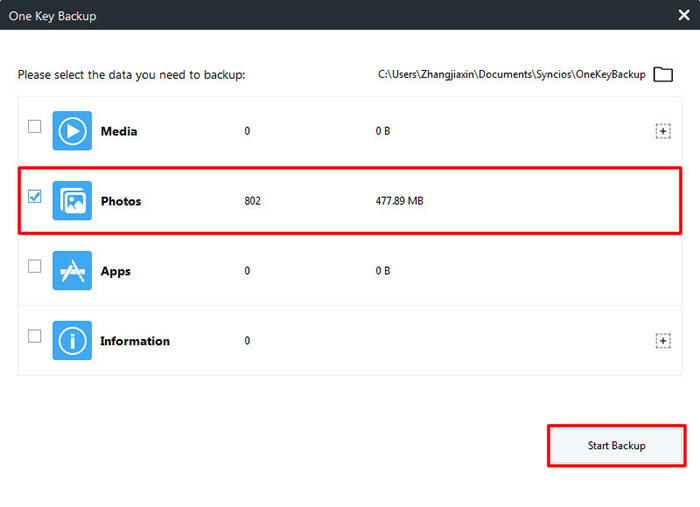
Step 2: Choose 'Photos' >> Click 'Start Backup'
Select 'Photos' option and wait for Syncios to synchronize your data, then click 'Start Backup' to launch. Syncios will backup all picture file from your OnePlus 7 to computer.
Tips: If you encounter any detection problem during the process, please check our Android tutorial for help.
Method 4: Use Google Photo App to Backup OnePlus 7 Photos to Google Photos library
Save photos you take with your device's camera and photos saved on your OnePlus 7 to your Google Photos library.




评论
发表评论